Most forwarders keep their buy rates in a mix of carrier PDFs, Excel files and email threads. Quoting a customer means finding the latest sheet, checking validity and adding your margin by hand.
Shipzy's rate book puts those rates in one place. You upload a sheet in whatever format the carrier sent, check what was read, set your markup once and decide which sell rates the market can see. This guide walks through each step with screenshots.
Before you start
- Plan. The rate book is part of the Ranked plan. If you're on the free listing, compare plans first.
- Where to find it. Sign in, click your company name in the top-right corner and choose Ocean Rates, then open the My Rates tab. The same tools sit under Dashboard → Rates.
- CMA CGM rates. Anyone with access can look up CMA CGM's public tariffs. To see your own contract and SpotOn rates, your CMA CGM account has to be linked first. Step 3 explains how.
Step 1: Upload a rate sheet
The Upload Rates card is at the top of My Rates. Drop one or more files on it, or click to choose them.
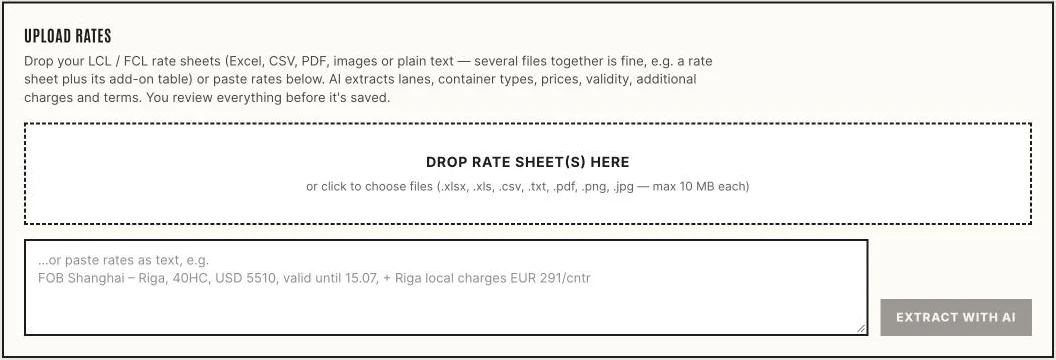
Drop the carrier's own file. You don't need to reformat it first.
What you can upload:
| Format | Notes |
|---|---|
| Excel (.xlsx, .xls, .xlsm) and CSV | Every sheet in the workbook is read |
| Carrier rate confirmations, contract annexes | |
| Images (.png, .jpg) | A screenshot of a rate table works |
| Plain text (.txt) | Or paste the rates straight into the text box |
Each file can be up to 10 MB, and you can send up to five at once. If you only have a few lines in an email, paste them into the box under the drop area, for example FOB Shanghai – Riga, 40HC, USD 5,510, valid to 15 Dec, and press Extract with AI.
Extraction takes a few seconds for a spreadsheet and longer for a long PDF. Nothing is saved yet.
Step 2: Check what was read, then save
Shipzy shows every rate it found in an editable table headed Review N Extracted Rates. Read it the way you'd check a colleague's work.
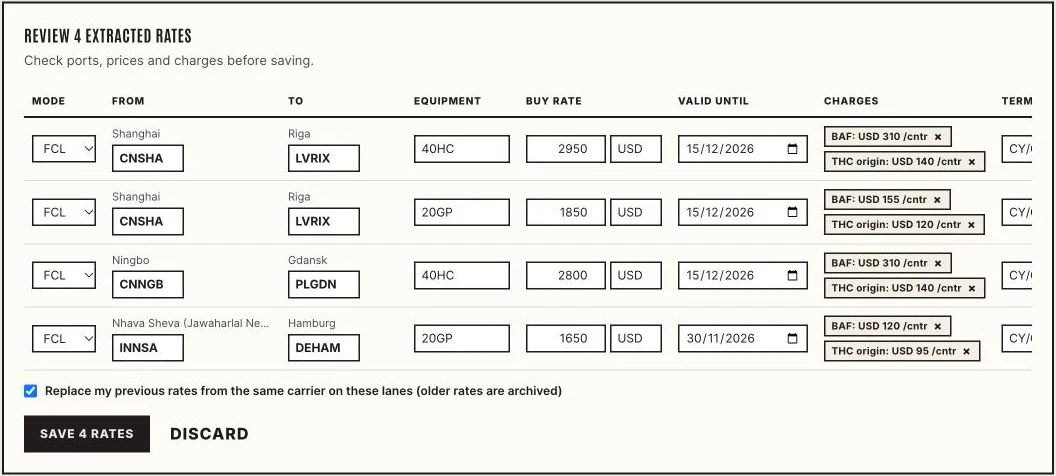
A sample sheet with made-up rates. Every cell can be edited before you save.
Check these columns in particular:
- From and To. Each port needs a five-character UN/LOCODE, such as CNSHA for Shanghai or LVRIX for Riga. Rows with a missing or wrong code are marked and block saving until you fix them.
- Equipment. The container type for FCL (20GP, 40HC and so on). For LCL, pick the basis: per w/m, per cbm, per 1,000 kg or lump sum.
- Buy Rate. The amount and three-letter currency you pay the carrier.
- Valid Until. The last day the rate applies. Expired rates stop showing to customers.
- Charges. Surcharges the sheet listed separately, such as BAF or THC, shown as small tags. Remove any that don't apply.
- Terms. Free text such as CY/CY or subject to PSS.
Leave Replace my previous rates from the same carrier on these lanes ticked when the new sheet supersedes the old one. Older rates on the same lanes are archived and stop being shared. Untick it if you want both versions in your book.
Press Save N Rates when the table looks right, or Discard to throw the extraction away.
Step 3: Add CMA CGM rates
You can also pull rates straight from CMA CGM instead of waiting for a sheet. Open the Search Rates tab, keep the mode on FCL and enter:
- Origin (POL) and Destination (POD), by city name or UN/LOCODE
- Container size: 20', 40' or 40' HQ (you can tick several)
- # Containers and Export date (within the next 30 days)
- Commodity, which defaults to Freight All Kinds
Press Get rates. Each offer is labelled with where it came from:
| Label | What it is |
|---|---|
| Contract | Your negotiated CMA CGM contract rate |
| SpotOn | CMA CGM's live spot offer for that sailing |
| Tariff | CMA CGM's published tariff, indicative only |
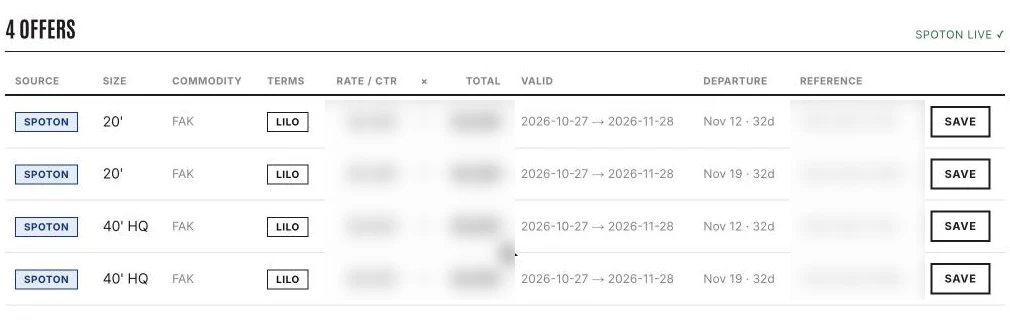
Rates and references are blurred in this screenshot. The Save button sits at the end of each row.
Press Save on any CMA CGM row to copy it into My Rates as a buy rate. It arrives with no markup and stays private, just like an uploaded rate.
Linking your CMA CGM contract
Without a link you'll see the published tariff only, and the page says "No active CMA LOA on your account yet". To see your own contract and SpotOn rates:
- Email [email protected] with your company name and your CMA CGM Partner ID (your customer code with CMA CGM).
- We take you through a short authorisation that lets Shipzy request rates from CMA CGM on your behalf.
- Once it's active, the Search Rates page says "Your CMA contract is linked — you'll see your negotiated rates."
Shipzy uses the link only to fetch your rates. Your contract terms and buy prices are never shown to anyone else.
Step 4: Set your markup
All saved rates sit in the My Rates table at the bottom of the tab. Each row shows the lane, equipment, your buy rate, extra charges, your markup and the resulting sell price.
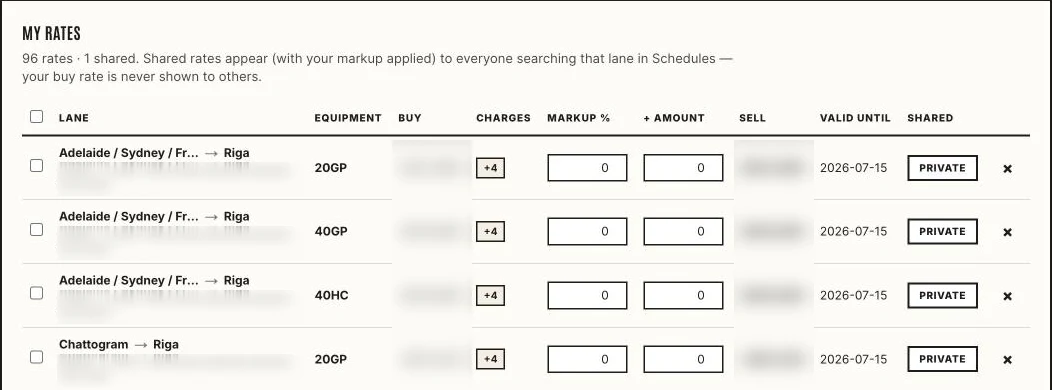
Buy rates and markups are blurred here. Only the sell price is ever shown to others.
There are two ways to add margin, and you can combine them:
- Markup %, a percentage on top of the buy rate
- + Amount, a fixed amount on top, in the rate's currency
The sell price is buy rate × (1 + markup %) + amount. For example, a USD 2,950 buy rate with 12% and USD 50 sells at USD 3,354. Changes save as soon as you click out of the field.
To price many rates at once, tick the rows, type a percentage in the Markup % box that appears above the table and press Apply Markup.
Step 5: Share the rates you want to sell
Every rate starts as Private. Click the button at the end of a row to switch it to Shared, or tick several rows and press Share.
Shared rates appear, with your markup applied, in two places:
- Live rate pages. Each lane has its own page, such as shipzy.ai/rates/innsa-to-deham, listing every forwarder's current sell rates for it. Shippers can also search any port pair at shipzy.ai/rates.
- Schedule search. When someone searches sailings on a lane you've priced, your rate shows next to the results under Live Rates from Forwarders.
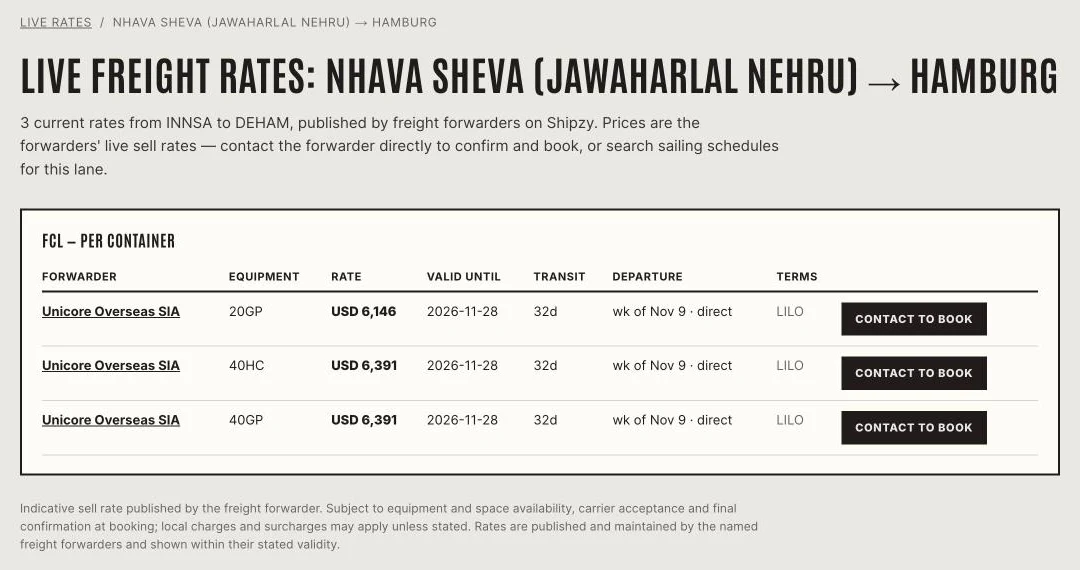
The public lane page. Visitors see the forwarder, sell rate, validity, transit and a Contact to Book button.
What other people see, and what they never see:
| Shown to everyone | Never shown |
|---|---|
| Your company name and profile link | Your buy rate |
| Equipment and sell rate | Your markup |
| Valid until, transit time | The carrier's name |
| Extra charges you listed | Vessel name and exact sailing date |
| The Terms text you wrote | Contract references |
Because the Terms field is public once a rate is shared, keep carrier names and contract numbers out of it.
Each public rate carries a standard note that prices are indicative and subject to space, equipment and confirmation at booking, so customers know to contact you before they book. To take a rate down, switch it back to Private. It disappears from public pages straight away.
Good habits that keep your rates useful
- Upload when the carrier sends a new sheet. With "Replace previous rates" ticked, old prices drop out by themselves.
- Watch the Valid Until column. Expired rates stop showing, so a lane can go quiet without you noticing.
- Share fewer, better rates. A handful of current rates on lanes you really serve is worth more than a long list nobody can book.
- Answer the enquiries. Contact to Book sends the shipper straight to you. A quick reply is what turns a listed rate into a booking.
Common questions
Can other forwarders see my buy rates? No. Only you see buy rates, markups, carrier names and contract references. Public pages show the sell price and the details listed in the table above.
Does sharing a rate mean I have to honour it? Every public rate is marked as indicative and subject to space, equipment and confirmation at booking. Keep validity dates realistic and unshare rates you no longer want to offer.
Which file formats work best? The carrier's original Excel file usually gives the cleanest result. PDFs and screenshots work too, but check the review table more carefully.
Can I use LCL rates? Yes. Choose LCL in the review table's Mode column and pick the pricing basis (per w/m, per cbm, per 1,000 kg or lump sum).
I don't see the My Rates tab. The rate book comes with the Ranked plan. If you're on Ranked and still don't see it, write to [email protected] and we'll check your account.
Make your company easier to find. Create a free Shipzy profile and explore the tracking and schedule tools.
Create your free profile →